
Configuration Stages
To configure the Qualigen FastPack IP System to connect to Relaymed the following configuration stages are required:
- Configure the Qualigen FastPack IP System Device Settings
- Qualigen FastPack IP System Connection Configuration
- Lantronix Configuration for Ethernet
- Digi Edgeport connection for Direct PC
- Add device to the device to the Relaymed Link or Relaymed Software Agent.
Stage 1: Configure Device
To allow the Qualigen FastPack IP System to communicate with Relaymed the following settings are required:
- Language Units: English 2
Step 1: From the Main Menu use the Red button to cycle through menu options to Language Units setting.
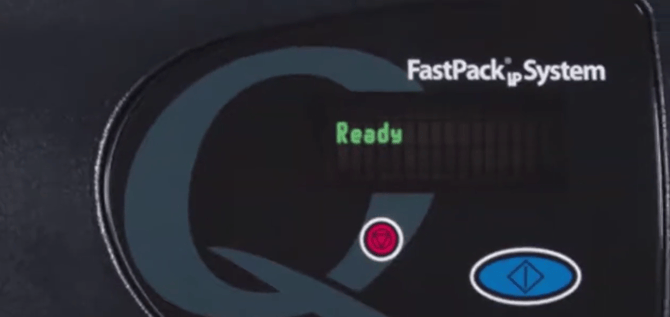
Step 2: Press the Blue button to enter the Language Units menu.
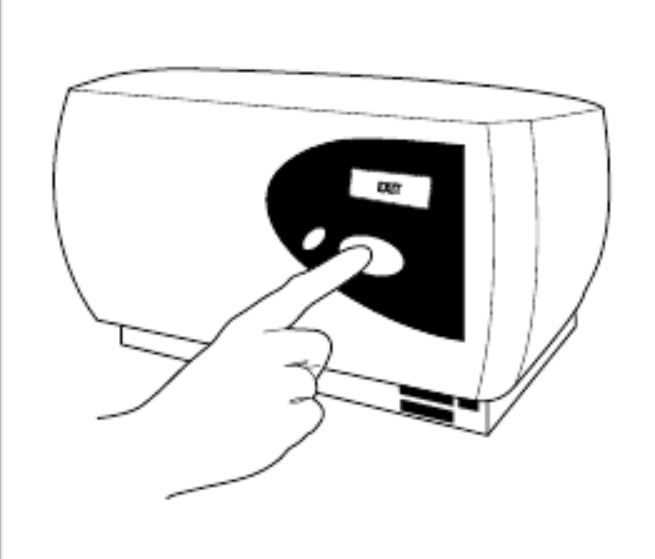
Step 3: Press the Red button to cycle through the options until "English 2" is displayed.
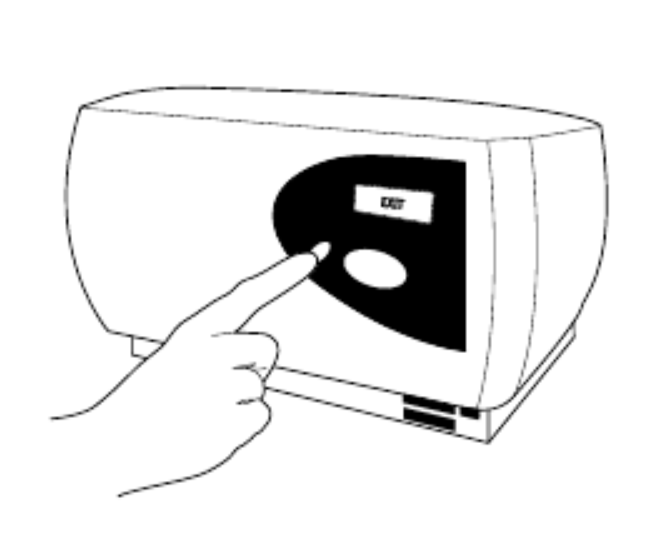
Step 4: Press the Blue button to save the setting.
Step 5: Press the Red button until "Exit" is displayed.
Step 6: Press the Blue button to exit the menu and save the settings.
Ethernet Connection
Stage 2: Adapter Configuration (Ethernet Connection Only)
Step 1: Connect the Male-to-Male Null Modem adapter to the COM 2 port on the rear of the Qualigen FastPack IP.
Step 2: Connect the Serial-to-Ethernet Adapter to the Male-to-Male Null Modem adapter.
Step 3: Follow the Serial to Ethernet Adapter configuration guide to correctly configure the adapter to connect to your network.
Direct PC Connection
Stage 2: Digi Edgeport Connection (Direct PC Connection Only)
Step 1: Connect the Digi Edgeport to to the COM 2 port on the rear of the Qualigen FastPack IP and an available USB port on the PC.
Step 2: Record the Serial Number on the Digi Edgeport Adapter, this will be required to add the device to the (RSA) Relaymed Software Agent.
Stage 3: Add Device to the Relaymed Link or Relaymed Software Agent
For practices using the Relaymed Link, log in to your Relaymed Portal and follow these steps:
Adding a Device to Relaymed Link
For practices using the Relaymed Software Agent, open the server or PC where the agent is installed and follow these steps:
Adding a Device to Software Agent