
Stage 0: Before you start - Add Device to the Relaymed Link or Relaymed Software Agent
For practices using the Relaymed Link, log in to your Relaymed Portal and follow these steps:
Adding a Device to Relaymed Link
For practices using the Relaymed Software Agent, open the server or PC where the agent is installed and follow these steps:
Adding a Device to Software Agent
Back to the device - make sure it's plugged in
An Ethernet cable must be plugged directly into the Ethernet port on the back of the instrument.
Note: All Connectivity settings on the LIAISON NES require an administrator account. Make sure you are logged in as an administrator before starting.
Stage 1: Network Configuration
The LIAISON NES uses DHCP automatically when an active Ethernet cable is connected, so no manual IP configuration is required. Use the steps below to confirm the network connection.
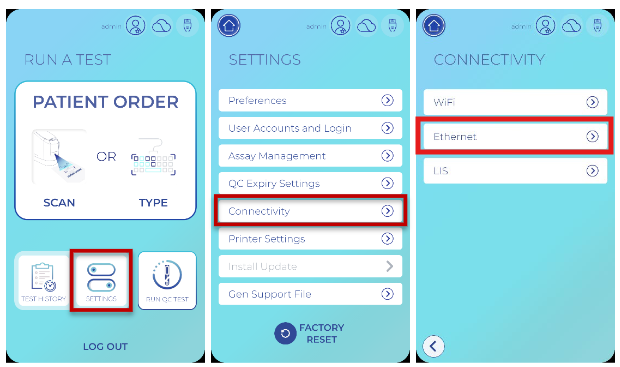
Step 1: From the Home screen, select "SETTINGS".
Step 2: Select "Connectivity", then select "Ethernet".
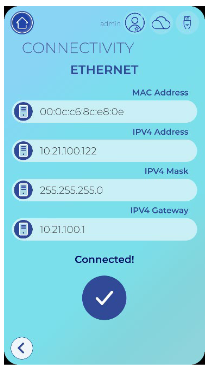
Step 3: Confirm that the MAC Address, IPV4 Address, IPV4 Mask, IPV4 Gateway, and Connection status are populated and that the device is connected.
Note: Wi-Fi is supported but can only be enabled while the Ethernet cable is unplugged. For Relaymed connectivity, Ethernet is required.
Stage 2: LIS Configuration
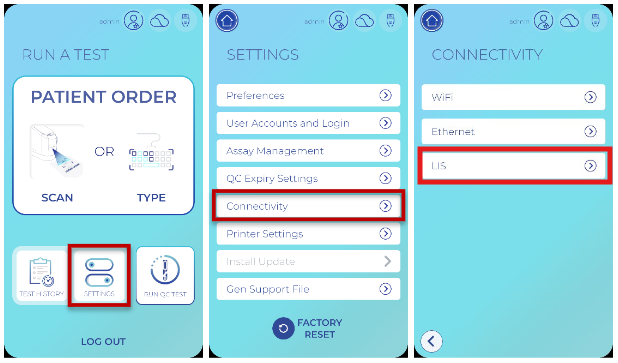
Step 1: From the Home screen, select "SETTINGS".
Step 2: Select "Connectivity", then select "LIS".
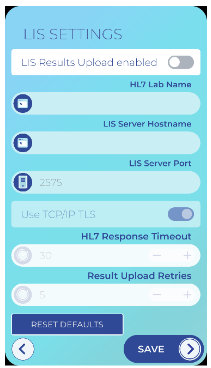
Step 3: Toggle the "LIS Results Upload enabled" switch to the right. This unlocks the remaining LIS fields for editing.
Step 4: Select the "HL7 Lab Name" field, enter the laboratory name assigned to the facility, then select the check mark to save.
Step 5: Select the "LIS Server Hostname" field, enter the IP address of the Relaymed Software Agent host machine (or the Relaymed Link), then select the check mark to save.
Step 6: Select the "LIS Server Port" field, enter the Port Number used to communicate with the Relaymed Software Agent, then select the check mark to save.
Step 7: Toggle the "Use TCP/IP TLS" switch to the left to disable TLS, as the Relaymed Software Agent receives HL7 messages over plain TCP/IP.
Step 8: Select "TEST" in the bottom right to save changes and test the LIS connection.
Step 9: Review the LIS Server Hostname, LIS IP Address, and LIS Server Port. If the information is correct, select "YES", then select "OK" to finish.
Almost Done!
Once configured, the LIAISON NES will automatically begin transmitting test results to Relaymed via HL7. Any failed transmissions due to a network interruption will be re-sent automatically once the connection is restored. Tests can be dismissed from the myRelaymed portal.