Before you start - Add device to the Relaymed Link or Relaymed Software Agent
For practices using the Relaymed Link, log in to your Relaymed Portal and follow these steps:
Adding a Device to Relaymed Link
For practices using the Relaymed Software Agent, open the server or PC where the agent is installed and follow these steps:
Adding a Device to Software Agent
Back to the device - Connect the device to your network
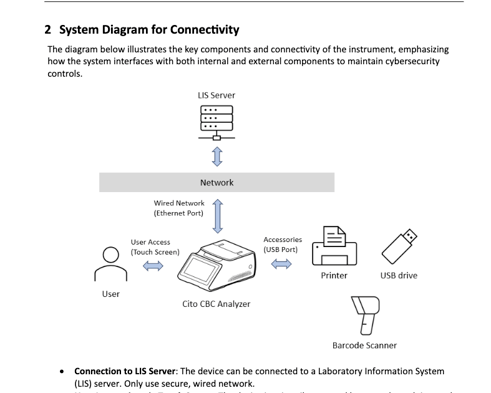
Step 1: Connect the Cytochip/Cito CB to the Ethernet port on the back of the device. Connect the other end to an active Ethernet wall port or switch.
Device configuration steps
Stage 1: Supervisor account and Label Configuration
Note: Before configuring your Cytochip you will need to use your Cytochip Supervisor account you created to make any changes.
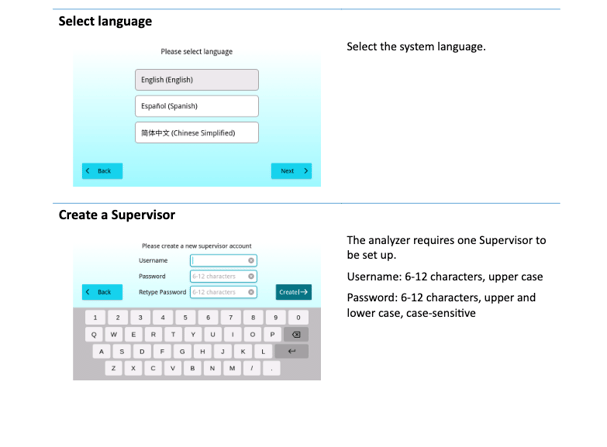
- Select the System Language.
- Create a Supervisor.
- The analyzer requires one supervisor to be set up
- Username: 6-12 characters, upper case.
- Password: 6-12 characters, upper and lower case, case sensitive.
- The analyzer requires one supervisor to be set up
- System Self-check
- Wait for Self-Check
- Once logged in, a system self-check will start automatically.
- The analyzer is ready for tests when the home screen displayed without any error messages
- Caution: Do not open the lid during self-check.
- System self-check failed
- In case of a system self-check failure, error messages will be displayed.
- Follow the suggestion and reboot the analyzer. For more information, refer to the section "Troubleshooting and Error Messages."
- If the system self-check fails, test functions will be disabled.
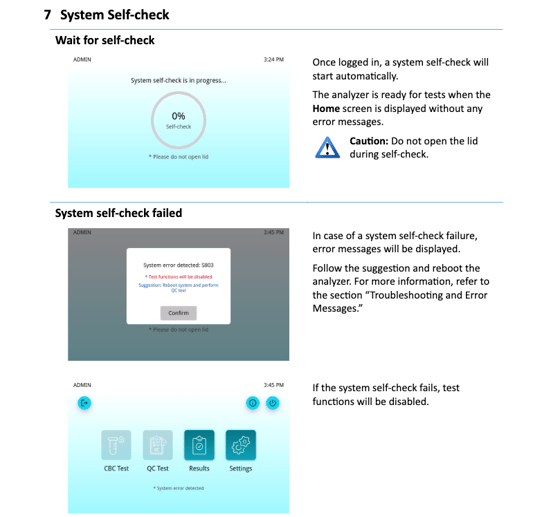
- Wait for Self-Check
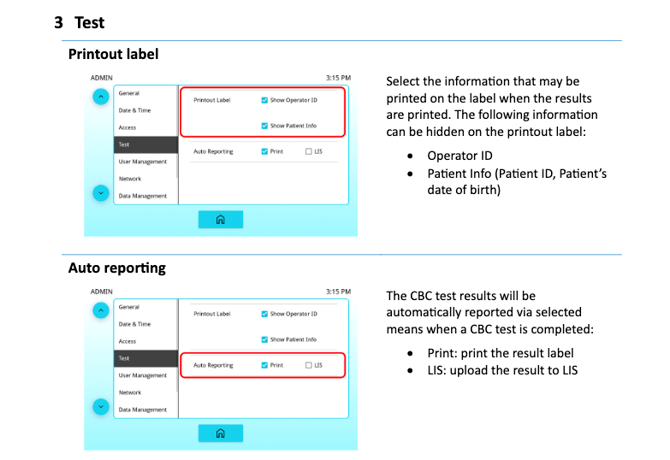
- Select "Test" tab
- Go to the "Printout Label" section.
- Select BOTH boxes in 'printout label.'
- Go to the "Auto Reporting" section.
- Select LIS for 'auto reporting.'
- Go to the "Printout Label" section.
Stage 2: LIS Configuration
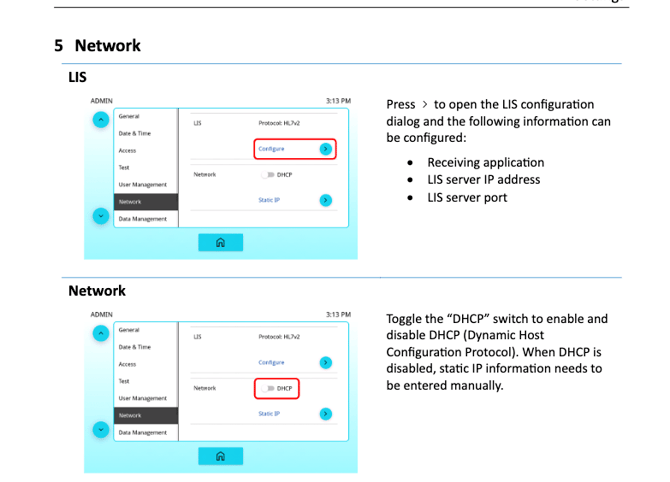
- Under the 'Network' tab, go to "LIS" section.
- Press 'Configure' and open the LIS configuration dialog.
- Enter the following infromation:
- Press 'Configure' and open the LIS configuration dialog.
Stage 3: Network Configuration
-
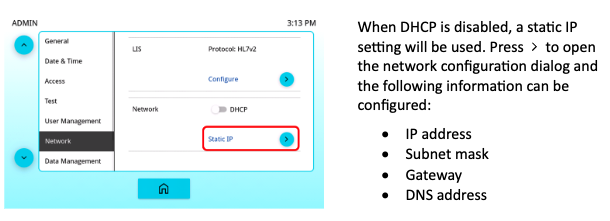
Select DHCP to auto assign the IP/Port information.
- Turning DHCP off you will need to manually insert IP and Port information