
Stage 0: Before you start - Add Device to the Relaymed Link or Relaymed Software Agent
For practices using the Relaymed Link, log in to your Relaymed Portal and follow these steps:
Adding a Device to Relaymed Link
For practices using the Relaymed Software Agent, open the server or PC where the agent is installed and follow these steps:
Adding a Device to Software Agent
Back to the device - make sure it's plugged in
An Ethernet cable must be plugged directly into the port on the back of the machine
Device configuration steps
Stage 1: Network Configuration
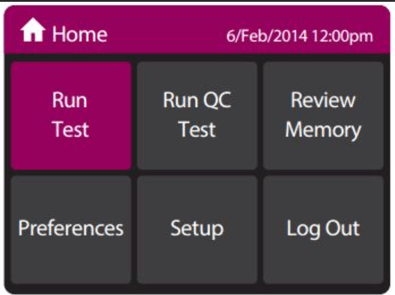
Step 1: From the Alere i Home screen press the "Setup" button.
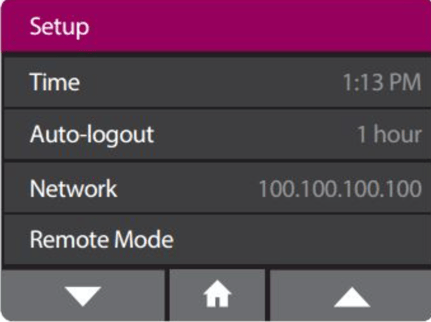
Step 2: From the "Setup Menu" use the "Down Arrow", then press the "Network" button.
Step 3: On the Network Screen, select either:
- DHCP - The Alere i will be assigned a IP Address Automatically
- Static - The Alere i will use the manually entered IP Address and Subnet Mask.
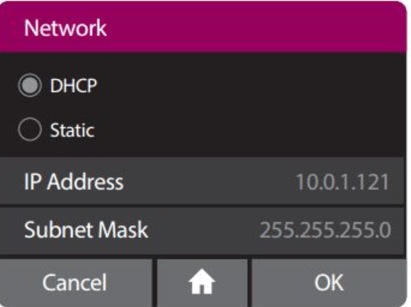
Step 4: If DHCP is selected please proceed to Step 6.
On the Network Screen select "IP Address" to enter the Static IP address. Then Press the "Check Mark" to save the IP address
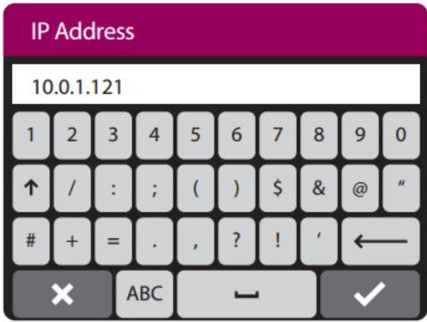
Step 5: On the Network Screen select "Subnet Mask" to enter the Subnet Mask. Then Press the "Check Mark" to save.
Step 6: Finally, on the Network Screen, select "OK" to save the Network Configuration.
Stage 2: LIS Configuration
Step 1: From the Alere i Home screen press the "Setup" button.
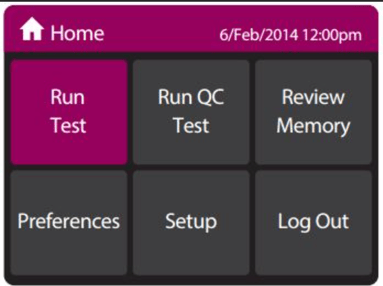
Step 2: From the "Setup Menu" use the "Down Arrow", then press the "Connectivity" button.
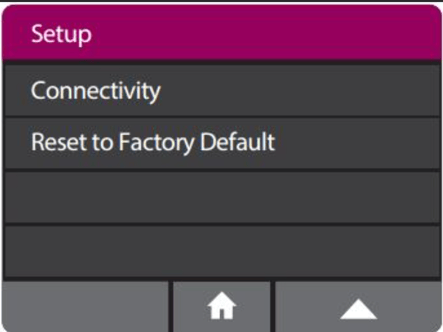
Note: Make sure to select "ASTM LIS" if prompted to select a connectivity protocol at any point.
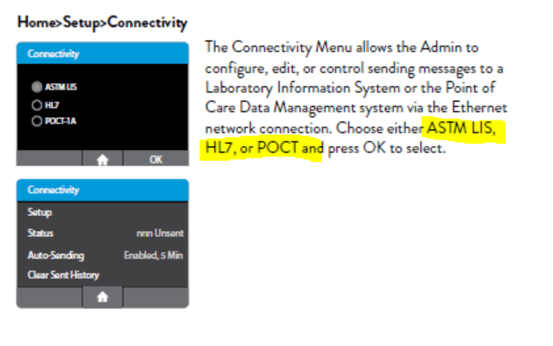
Step 3: On the "Connectivity" Screen, select the "LIS Setup" button
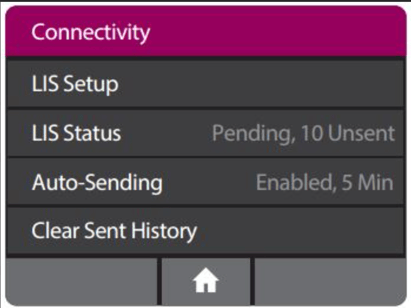
Step 4: On the "LIS Setup" Screen Select "IP Address" button.
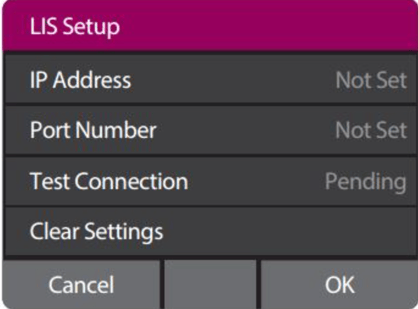
Step 5: On the "IP Address" screen enter the IP address of the Relaymed Software Agent host machine. Then press the "Check Mark" to save.
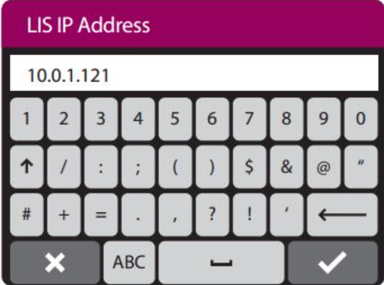
Step 6: On the "LIS Setup" Screen Select "Port Number" button.
Step 7: On the "Port Number" screen enter the Port Number to be used to communicate with the Relaymed Software Agent. Then press the "Check Mark" to save.
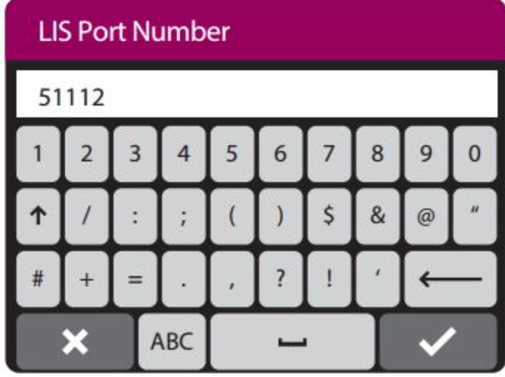
Step 8: On the "LIS Setup" Screen Select "OK" to save the changes and return to the "Connectivity" Menu
Step 9: On the "Connectivity" Screen, select the "Auto-Sending" button.
Step 10: On the "Auto-Sending" Screen, Ensure "Auto-Sending" is enabled and Auto-Send Period is set to "5 Minutes". Then Press "OK" to save the settings.
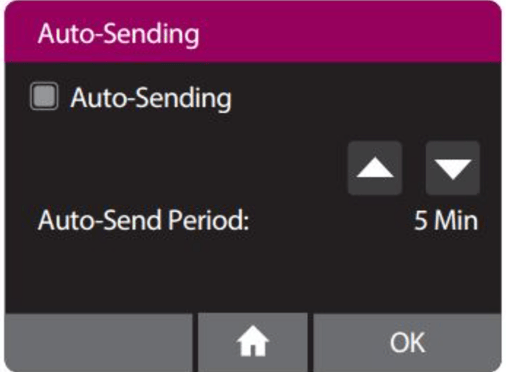
Step 11: On the "LIS Setup" Screen Select "Home" to return to the "Home" Screen.
Almost Done!
Once configured, the ID NOW will automatically start sending all historic tests in memory to Relaymed. Tests can be dismissed from myRelaymed portal.